macOS used to be beautiful

If you used a Mac in the 2000s, you will remember the detailed icons, the “lickable” glossy buttons and the overall colourful, fun look of the entire operating system. Back then, the Mac operating system was beautiful.

macOS looks very different today. Most of the colour and detail is gone. The previously grey window chrome is now a painfully plain white, and the previously detailed colourful icons are now simple, often monochrome shapes, leaving the whole interface feeling lifeless and boring.

Aqua

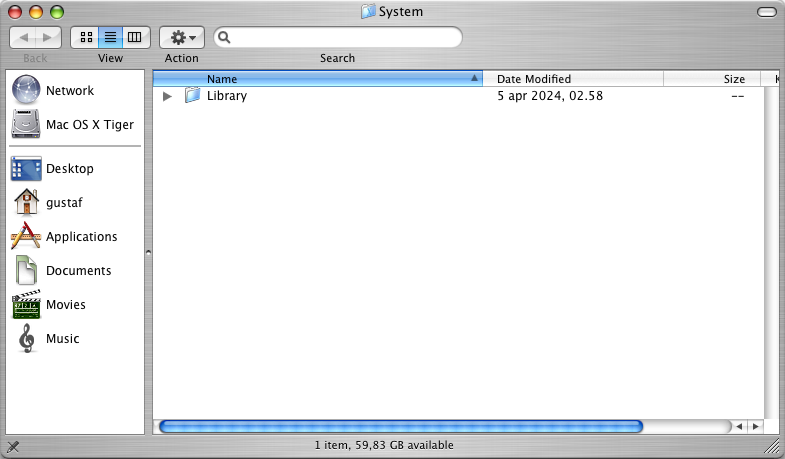
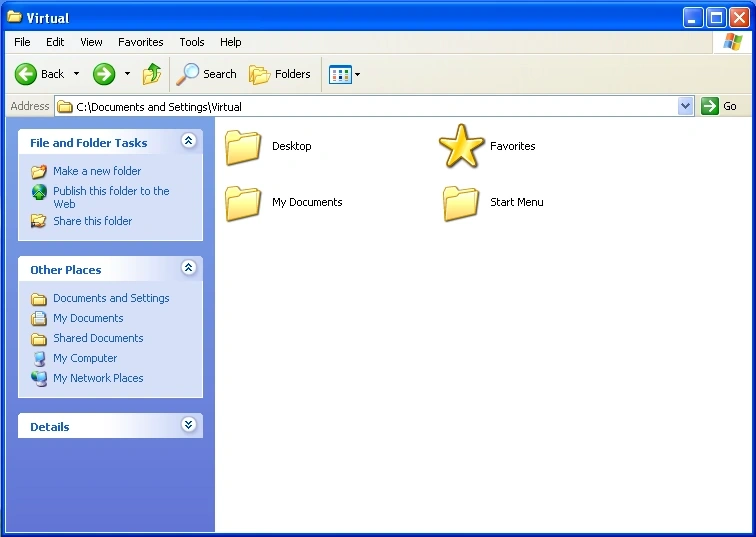
Mac OS X came out in 2001 with a new interface called Aqua. I used Mac OS 9 on an iMac G3 until I got an iMac G5 with Mac OS X 10.4 (Tiger), and the difference was massive. It was better looking than any other thing out there. To see how different it was from what most people were using at the time, you can compare it with Windows XP, Microsoft’s main desktop operating system from 2001 until the release of Windows Vista in 2007.

A Finder window in Tiger (2005 – 2007), showing the interface already established in Panther (2003)
A Windows Explorer window in Windows XP (2001 – 2007)
Windows XP showing the classic Luna interface

Windows XP had a colourful and detailed look of its own, but next to Mac OS X it looked like it had been designed for a preschool, like a plastic toy version of an operating system.

Steve Jobs on taste

Steve Jobs had strong views on how Microsoft designed their products. In a 1995 interview (when he was still at NeXT) for the documentary Triumph of the Nerds, he said:

The only problem with Microsoft is they just have no taste. They have absolutely no taste. [...] I don’t mean that in a small way, I mean that in a big way. In the sense that they don’t think of original ideas and they don’t bring much culture into their product. And you say ‘why is this important?’, well you know, proportionally spaced fonts come from typesetting and beautiful books, that’s where one gets the idea. [...] Their products have no spirit to them. [...] They are very pedestrian. [...] Microsoft is just, you know, it’s McDonald’s.

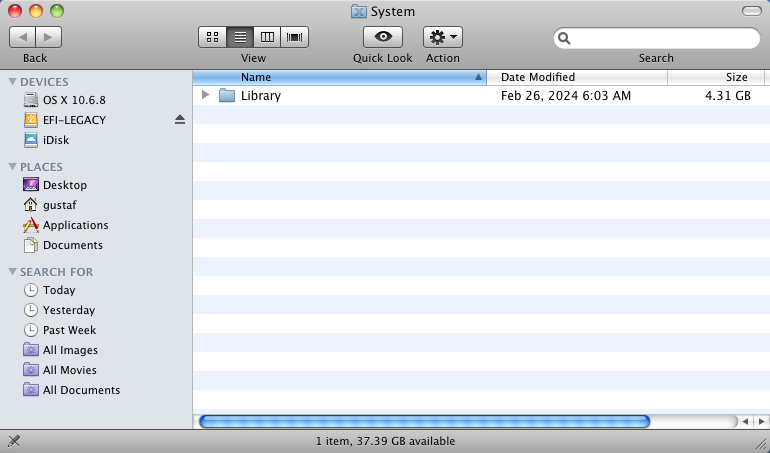
This was before Jobs had returned to Apple and years before either Windows XP or Mac OS X existed, and he put it a bit pretentiously, but looking at Tiger next to Windows XP, I definitely understand what he meant. But, I feel the exact same way looking at any version of macOS past Mavericks next to any version before it. Now, Apple is just McDonald’s.

A Finder window in Snow Leopard (2009), showing the interface already established in Leopard (2007)
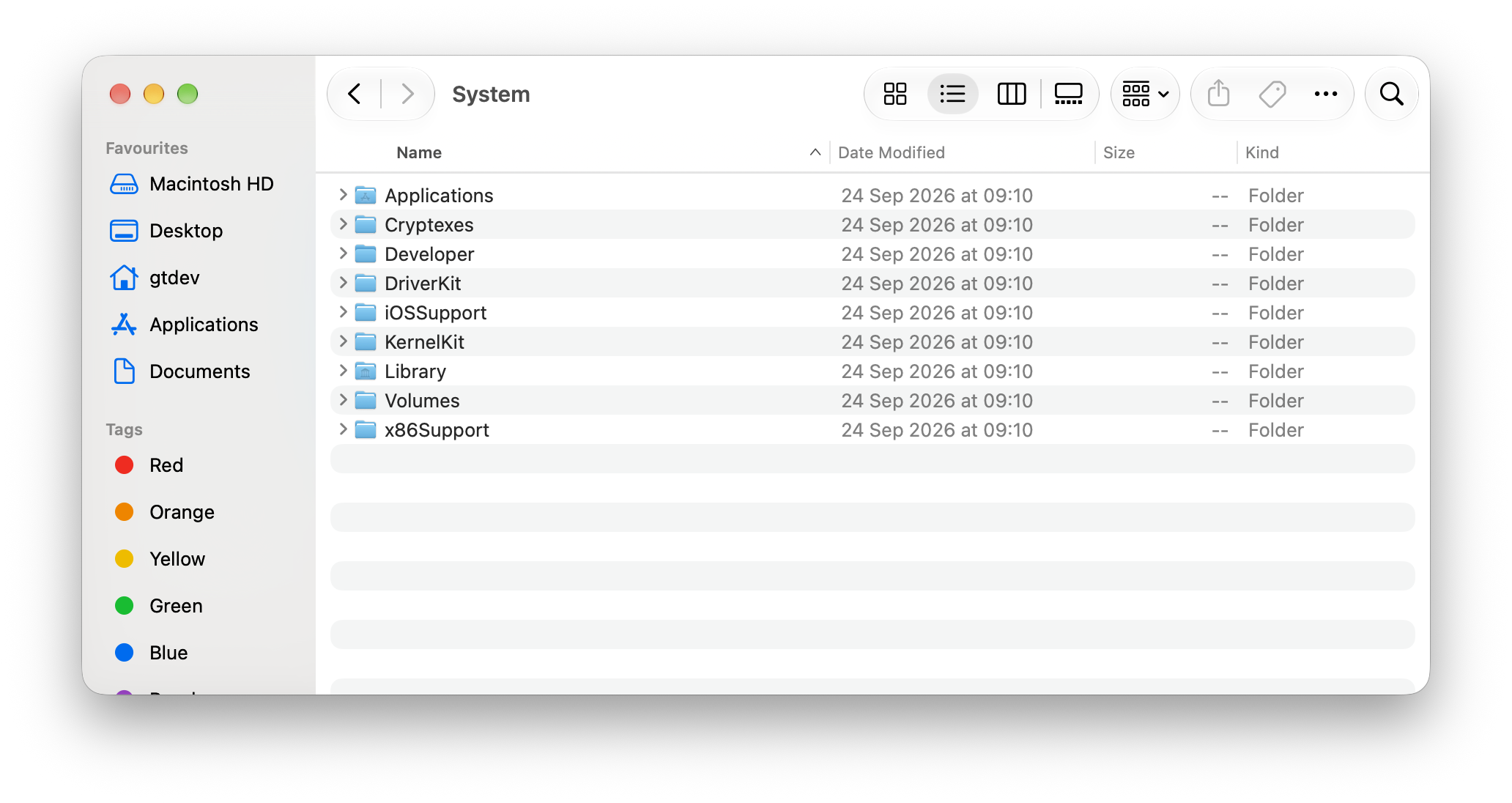
A Finder window in Golden Gate (2026)
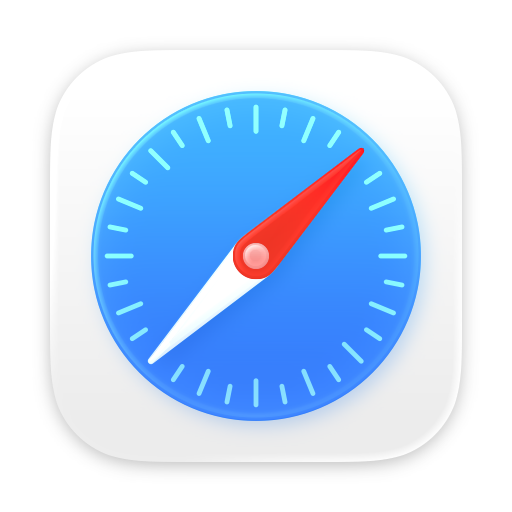
Application icons

Apple’s application icons are some of the best examples of how beautiful things used to look. No words needed really, just look at these older ones next to the ones from Golden Gate.

Skeuomorphism

Skeuomorphism tends to be brought up when Apple’s older designs are discussed. Skeuomorphism is when UI designs imitate physical objects, like a calendar app having a realistic leather texture or an ebook app showing your collection literally lined up on a wooden bookshelf. Apple certainly overdid this at times, particularly around Lion and iOS 6.

iBooks 3.0 on an iPad
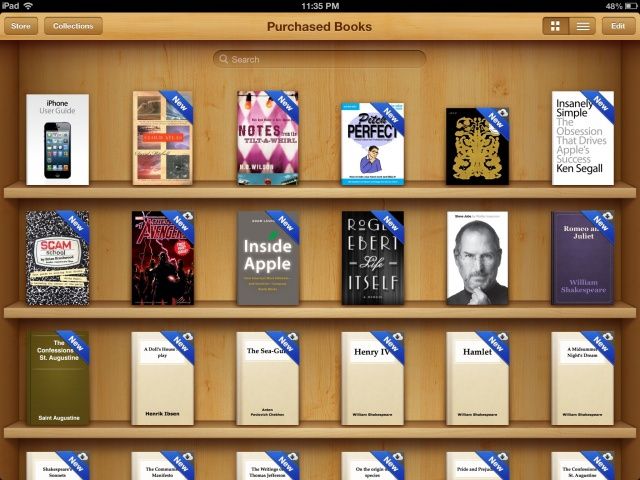
It’s a bit charming in a way, but I’m not really a big fan. The sometimes excessive skeuomorphism isn’t really what I miss. What I miss are just the pleasant colours and the detail in general that made the operating system nice to look at and use.

Architecture

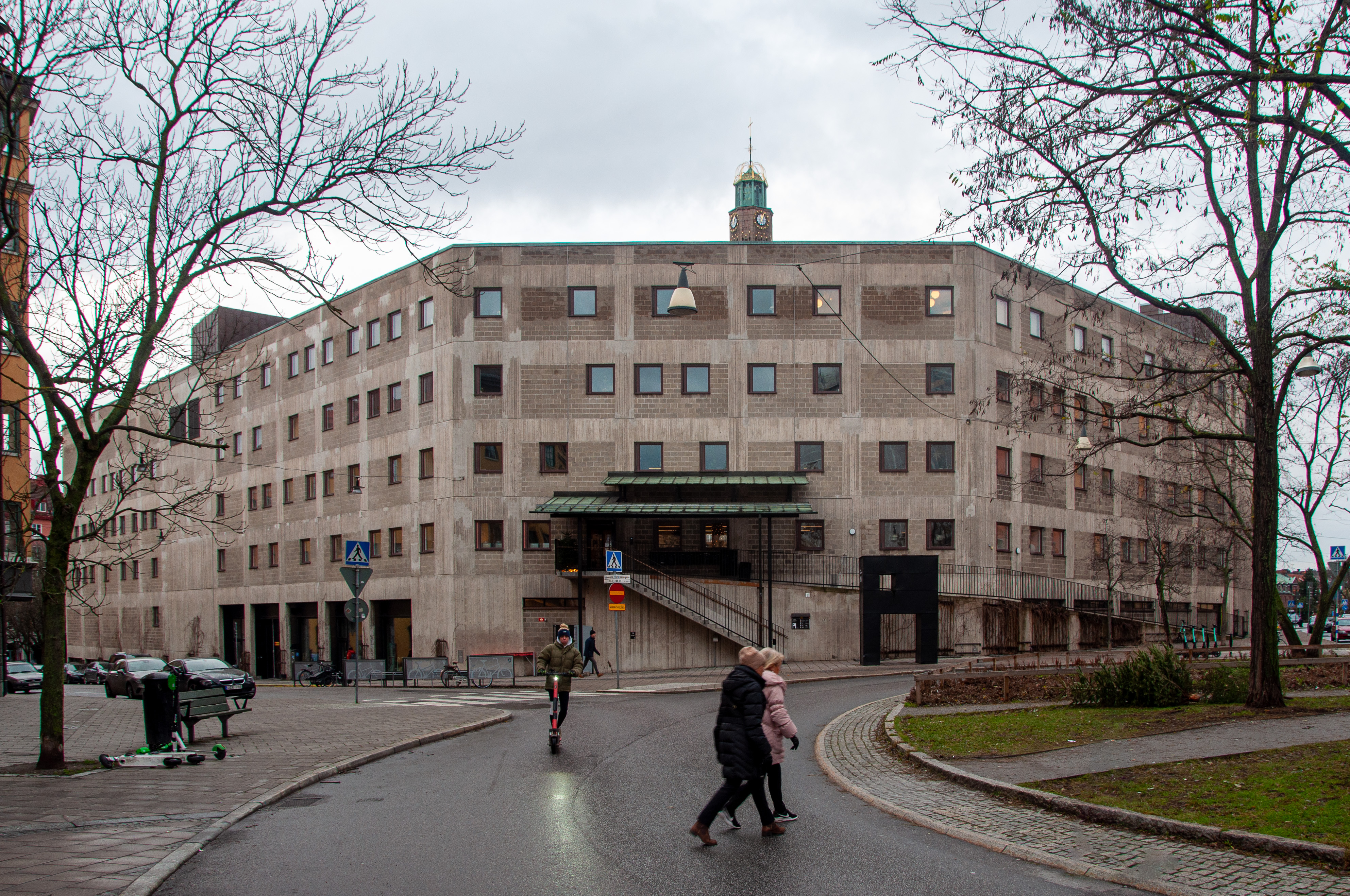
There are lots of analogies to architecture here, in my opinion. Many European cities are full of classical buildings from the late 1800s and early 1900s, with beautiful detail and decoration, and then on the other hand you have those brutalist concrete boxes from the 1960s and onwards that looks like they could have been torture chambers built under an authoritarian communist regime.

None of those decorative details on the classical buildings are strictly necessary for their function, but the architects took the time to make them beautiful, and even just walking past them makes everything feel a little more pleasant. I believe psychologically beautiful things just lift the moods of us humans (and the opposite), or at least they lift mine, whether it be a beautiful building or a beautiful piece of software.

The Östermalm prison, finished in 1897…
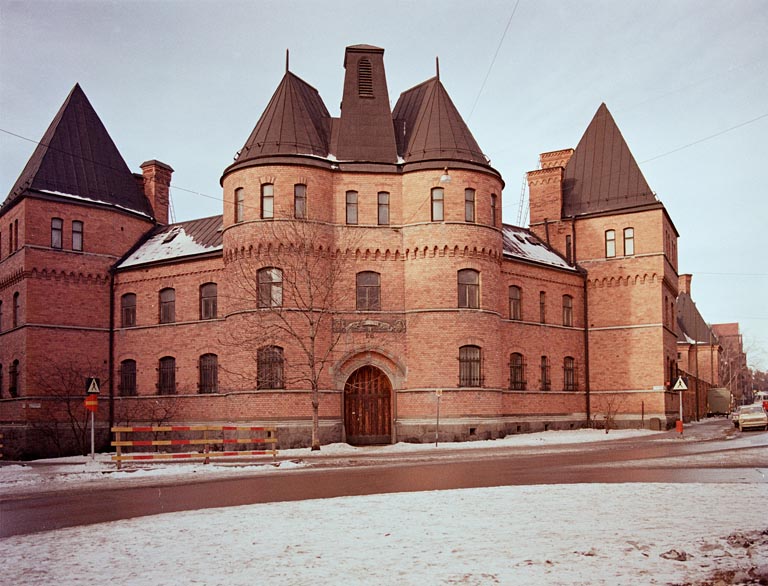
…and the architecture school building (!) that replaced it in 1969
Trends

Skeuomorphism, and “Frutiger Aero”, have come a bit back into fashion lately, at least on certain parts of the internet. Neither is really exactly what I miss, and a lot of “Frutiger Aero” are the goofy Microsoft designs I never liked, but I’m glad the trend seems to be shifting towards something other than boring minimalism, because I’ve felt this way for a long time. I disliked the monochrome sidebar icons and the thin grey scrollbars as soon as I upgraded to Lion in 2011, and disliked strongly when mostly everything was flattened with Yosemite in 2014. When Big Sur came out in 2020, I couldn’t bring myself to update, and stayed on Mojave until my Mac got so old I had to get a new one.

At least I can still modify the look of my OS with SIP disabled thanks to code injection. And Apple’s hardware has got a lot better recently, especially thanks to Apple silicon. I’ve never had a better computer than my M1 Macbook Pro!

How to modify system files on macOS 11+ despite the signed system volume

Starting with macOS 10.15, Apple introduced a read-only system volume for system content. In macOS 11 the security was further hardened with the introduction of the signed system volume. This is good for security of course, but makes it harder to change things, for example system application icons. There is a solution though.

First, you must boot into recovery mode. Once in recovery mode, open “Terminal” under “Utilities” in the menu bar and run the following commands to disable system integrity protection and authenticated root:

csrutil disable
csrutil authenticated-root disable

When you have run the commands, reboot and log back in as normal. Run the following Terminal commands to first create a temporary directory, and then to mount your system disk as writeable:

mkdir ~/system_disk
sudo mount -o nobrowse -t apfs $(mount | awk 'NR==1 {print substr($1,1,length($1)-2)}') ~/system_disk

Your disk will appear inside your home folder and will be writeable. After you have made your changes, run the following Terminal command to “bless” it:

sudo bless --mount ~/"system_disk/System/Library/CoreServices/" --setBoot --create-snapshot

After you have blessed the drive, reboot once again, and then you’re done.

How to restore macOS Catalina-style sidebars and table views on newer macOS versions

With the release of macOS 11 (Big Sur), Apple introduced a new design language that added more padding throughout the interface. This is what a Finder window looks like on macOS 12 (Monterey) (see the sidebar and the table view):

If you want to restore the old, more compact style used on macOS 10.15 (Catalina) and below, there are two Terminal commands for that. Simply run:

defaults write -g NSSidebarUsesGoldenMetrics -bool FALSE #force a plain style on sidebars globally
defaults write -g NSTableViewCanUseGoldenStyles -bool FALSE #force a plain style on table views globally

And you will get your UI looking like this:

If you wish to enable it only for a certain app, provide the app’s bundle identifier instead of -g. For example, if you wish for the change to apply only in Finder, run:

defaults write com.apple.finder NSSidebarUsesGoldenMetrics -bool FALSE #force a plain style on sidebars in Finder
defaults write com.apple.finder NSTableViewCanUseGoldenStyles -bool FALSE #force a plain style on table views in Finder

To revert back to the default style, just delete the setting:

defaults delete -g NSSidebarUsesGoldenMetrics #delete the sidebar setting globally
defaults delete -g NSTableViewCanUseGoldenStyles #delete the table view setting globally
defaults delete com.apple.finder NSSidebarUsesGoldenMetrics #delete the sidebar setting in Finder
defaults delete com.apple.finder NSTableViewCanUseGoldenStyles #delete the table view setting in Finder

Bringing colourful icons back to macOS 12 Monterey

The first Mac OS X version I can remember using was 10.4 (Tiger), and I still love the way it looks. The design changed quite a bit with 10.5 (Leopard), but not necessarily for the worse. The Leopard look is also beautiful in its own right, and I can’t really decide which one I like more.

Starting with 10.7 (Lion) though, Apple started shifting towards a flatter, less colourful look.  The previously detailed and colourful sidebar icons turned grey and monochrome, as did the scrollbars. The colourful toolbar icons, like those in app preference windows, held out all the way until macOS 10.15 (Catalina), when almost everything else had already been flattened. They finally disappeared in macOS 11 (Big Sur), when Apple managed to make macOS look even more lifeless, replacing greys with plain whites and swapping out most interface icons for minimal, monochrome SF Symbols.

Missing the old look, I built two tweaks for macOS 12 that let me control the sidebar and toolbar icons.

Sidebars

This tweak scans the app’s user interface and detects sidebar elements, like the cells that list folders och mailboxes. Once found, it swaps their default icons with custom ones defined in a mapping .plist file that links icon identifiers (like labels, file paths, or SF Symbols) to replacement images. Here is how it looks.

Before:After:

Toolbars

The toolbar tweak works essentially the same way. It scans the toolbar inside the preferences window of apps and swaps their icons according to what is defined in the mapping .plist file. Here is how it looks.

Before:

After:

The “after” screenshots also show a few extra touches from another tweak not detailed here, but essentially it loads the SystemAppearance.car (lifted from macOS 10.14) in order to restore its textures, changes the title bar font to regular, and in Finder it extends the toolbar and status bar.

How to install Homebrew on macOS

Homebrew is, in my opinion, an essential package manager for macOS. It greatly simplifies the process of installing and maintaining many different pieces of software. According to Homebrew’s website it “installs the stuff you need that Apple didn’t”.

To begin with, if you don’t already have them, install the Xcode Command Line Tools. Homebrew relies on Xcode Command Line Tools, which include compilers and other essential tools required for Homebrew to work. To install Xcode Command Line Tools, open Terminal in /Applications/Utilities/ and run the following command:

xcode-select --install

Click install and then agree to the license agreement.

Then to install Homebrew itself, run:

ruby -e "$(curl -fsSL https://raw.githubusercontent.com/Homebrew/install/master/install)"

and let it install. After the installation is complete, you can run simply:

brew

to verify that it has been installed correctly.

How do you use Homebrew?

Some commands you can run are:

brew search

This searches for packages available for installation.

brew install

This installs a package.

brew upgrade

This upgrades a package.

brew update

This updates Homebrew itself.

brew uninstall

This uninstalls a package.

brew list

This lists installed packages.

How to fix the “Back Up Now” button greyed out issue in iTunes on macOS 10.13 High Sierra

Sometimes, for some reason, certain Mac applications will change a setting, turning off the ability to make a backup of your iPhone in iTunes. If your “Back Up Now” button is greyed out, this might be what has happened to you.

To see if this is the case, open Terminal in /Applications/Utilities/ and run:

defaults read com.apple.iTunes DeviceBackupsDisabled

If the response is 1 or TRUE, then this solution applies to you. To turn on the ablity to back up again, just run:

defaults write com.apple.iTunes DeviceBackupsDisabled 0

and the issue will be resolved.


How to fix the Time Machine backups not finishing problem on macOS High Sierra

There is a bug in macOS High Sierra (10.13) which prevents Time Machine backups from completing. If your backups aren’t finishing, then you might have this problem. To see if you do, open up Terminal in /Applications/Utilities/ and run this command

log show --style syslog --predicate 'senderImagePath contains[cd] "TimeMachine"' --info

If you see messages like this:

2018-01-26 13:31:35.269569+0100  localhost backupd[2082]: (TimeMachine) [com.apple.TimeMachine:TMLogError] Failed to unmount disk mounted at '/Volumes/com.apple.TimeMachine.localsnapshots/Backups.backupdb/Mac/2018-01-26-133135/MacintoshHD', error: {
    Action = Unmount;
    Target = "file:///Volumes/com.apple.TimeMachine.localsnapshots/Backups.backupdb/Mac/2018-01-24-164749/MacintoshHD";
}

2018-01-26 13:31:35.269970+0100  localhost backupd[2082]: (TimeMachine) [com.apple.TimeMachine:TMLogError] Failed to unmount snapshot: com.apple.TimeMachine.2018-01-24-164749 source: MacintoshHD
2018-01-26 13:31:36.322938+0100  localhost backupd[2082]: (TimeMachine) [com.apple.TimeMachine:TMLogInfo] Backup canceled.

Then it is likely that you have this problem.


To finish a backup, you have to temporarily disable Spotlight. To do this you must first disable SIP (System Integrity Protection). Restart your computer, and once it is booting hold +R to boot into recovery mode. Open the Terminal from “Utilities” in the menu bar and disable SIP through this command:

csrutil disable

Then reboot, and again open Terminal and run this command to disable Spotlight:

sudo launchctl unload -w /System/Library/LaunchDaemons/com.apple.metadata.mds.plist

Complete

Barring other problems, you should be able to finish your backup after this. To enable Spotlight again, run this command:

sudo launchctl load -w /System/Library/LaunchDaemons/com.apple.metadata.mds.plist

To enable SIP again, you can either reboot into recovery mode and run:

csrutil enable

or just reset your NVRAM. To reset your NVRAM hold +alt+P+R during boot.

How to run Mac applications in the background and hide them from the Dock

Go to the application in Finder, right-click it, and click “Show package contents”. Go inside the folder “Contents”, there you will find a file called info.plist, which is the file we are going to edit.

First make a backup in case you want to easily revert or if something goes wrong. If you have Xcode, open the file with Xcode, if not, open it with TextEdit. The reason I say TextEdit is because some plaintext editors cannot handle .plist files.


With Xcode

Hover the mouse over any key and click the plus to create a new key. Name it NSUIElement, and change the value to 1.

With TextEdit

Add:

<key>NSUIElement</key>
<string>1</string>

to the second last line, just before </dict> and </plist>

Save the file, and restart the application. It will now run in the background.

How to speed up Time Machine backups

Time Machine is a great tool for backing up your system, but sometimes it can be very slow, in fact by default Time Machine prevents itself from using to much of your processing power. You can turn this off by opening Terminal in /Applications/Utilities and running:

sudo sysctl debug.lowpri_throttle_enabled=0

This will prevent Time Machine from throttling itself. To turn on the throttling again, just run the same command with 1 instead of 0, like this:

sudo sysctl debug.lowpri_throttle_enabled=1

How to use custom thumbnails for Safari Top Sites (macOS 10.12 – 10.14)

First you have to disable thumbnail refreshment, to do that, open Terminal in /Applications/Utilities/ and run:

defaults write com.apple.Safari DebugSnapshotsUpdatePolicy -int 2

Then, go to ~/Library/Caches/com.apple.Safari/Webpage Previews.

If the user Library folder is hidden, you can access it by pressing Command + Shift + G (⌘⌃G) in Finder, pasting the path in the text field and clicking “Go”.

In that folder you will find jpeg files with 32 character names. Either edit those directly, or copy images to the folder and rename them to whatever the name the different websites’ thumbnails had.

Remember to keep a backup of the files, since they are stored in a cache folder which might be emptied by certain programs or upon installing a new system.